



How to search scanned PDFs and text in screenshots (OCR)
Updated 20 October 2026
Windows Search and Spotlight cannot reliably find words inside a scanned PDF or a screenshot, because those words are pixels, not text. To search them you need OCR (optical character recognition), which reads the letters out of the image and turns them back into text. Your computer can do OCR on one picture at a time, which helps you copy text but does not make a whole drive searchable. To search all of them at once you need a tool that runs OCR while it indexes.
Three routes, in order of effort: copy the text out of one screenshot with a built-in tool, run OCR on a scanned PDF to save a searchable copy, or let a search tool run OCR over everything as it indexes so you never convert a file.
1. Why a scan or a screenshot cannot be searched
A search index stores words. A typed PDF contains them as characters. A scanned page, a photographed receipt or a screenshot of an error message contains only an image of those characters, so there is nothing to put in the index. This is why a file can look perfectly readable to you and be invisible to search.
The quick test: open the PDF and try to select a sentence with your mouse. If the text highlights, it has a text layer. If nothing highlights, or you get a box over the whole page, it is a picture. Our guide on Windows search not finding text inside PDFs walks through both cases, and the multi-file version is how to search multiple PDF files at once.
2. What the built-in search does with scans
Windows extracts text with a plug-in for each file type. For a scanned PDF or a screenshot that plug-in finds no text, and the classic indexer does not run OCR, so those files are found by their names only. No amount of re-indexing changes it. Copilot+ PCs add a separate semantic index that also covers some image formats; our guide on semantic search without a Copilot+ PC explains which PCs get it.
On a Mac, Spotlight is not reliable for text in screenshots or scanned PDFs: the words are pixels, so there is no text layer to store.
3. OCR one screenshot or image at a time
Both systems can read the text out of a single picture. This is the right tool when you need the words from one image, and the wrong one when you need to search a thousand.
- Windows 11, Snipping Tool. Capture a snip, then select the Text actions button to run OCR. You can select and copy specific text or use Copy all text. Microsoft states that all text recognition is performed locally on your device. Microsoft’s documentation describes this for Windows 11 only.
- Mac, Preview. Open an image that shows text, hover over the text and drag to select it, then Control-click and choose Copy Text. If you cannot select the text, choose Tools → Text Selection. Apple calls this Live Text.
A practical use: paste the copied text into a note and give the note a name you will remember. A note is plain text, which every search can read. It does not scale, but it works for the one screenshot you keep needing.
4. Make a scanned PDF searchable, file by file
Some PDF editors can run OCR and save a searchable copy. That is fine for a handful of documents. For a folder of hundreds it is slow, and you end up keeping two versions of everything, the original scan and the converted copy.
5. Search every scan and screenshot at once
The third route is a search tool that runs OCR as part of indexing. The files stay exactly as they are and the recognised text goes into the index. That is how BeaconFind works. It runs text recognition on scanned PDFs and on screenshots and images saved as PNG, WebP, BMP or TIFF, using the operating system’s own recognition (Windows OCR on Windows, Apple Vision on a Mac), on your machine. A scanned page inside a PDF that also has typed pages is read too.
Then you search the way you would for any document. Type a phrase that only exists inside an image, such as “router admin”, and the screenshot of the router’s settings page comes up, even though its file name is a timestamp. It searches by meaning as well as by exact words, across 70+ file types and 50+ languages, so the scan and the typed documents land in one result list.

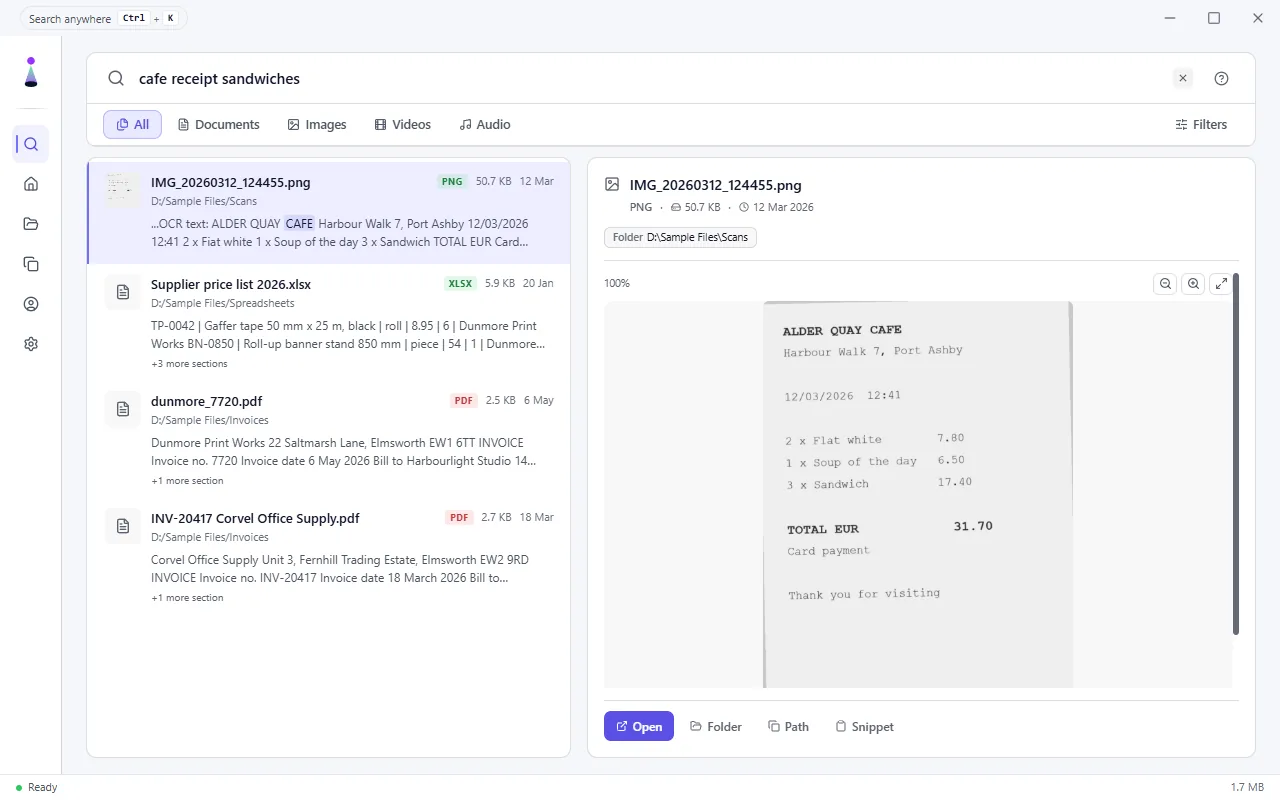
Be clear about the limits. OCR is never perfect, and a blurry or skewed scan reads worse than a clean one; a search by meaning that tolerates an imperfect word still finds the page. A photo saved as a JPEG is not read for its text, so save screenshots as PNG and use a PDF option in your phone’s scanning app where it has one.
Your files, their contents and your searches stay on your computer. The app does contact our server for two things, a licence check and an update check, and both can be blocked by a firewall without affecting search.
Search inside scans and screenshots without converting anything. Free for 14 days, no card needed. Windows 10 and 11, and Macs with Apple Silicon.
Download BeaconFindWhich route fits
| Your situation | Use this |
|---|---|
| You need the words from one screenshot | Snipping Tool Text actions (Windows 11) or Live Text in Preview (Mac) |
| A few scanned PDFs you will keep searching | OCR them once in a PDF editor and keep the searchable copy |
| Hundreds of scans and screenshots | A search tool that runs OCR while it indexes |
| The scanned document is in another language | Cross-language search |
| You are looking for one invoice or contract | Find it by what it says |
Frequently asked questions
Can Windows search text inside a scanned PDF?
No. A scanned page is a picture of text, and the Windows indexer does not run OCR, so there are no words for it to store. Windows can still find the file by its name. Re-indexing does not change this.
How can I tell whether a PDF is scanned?
Open it and try to select a sentence with your mouse. If the text highlights normally, it has a text layer. If nothing highlights, or you get a box over the whole page, the page is an image. Files that came from a scanner or a phone scanning app are usually images.
Can I search text in screenshots on a Mac?
Spotlight is not reliable for it, because the words in a screenshot are pixels. Apple's Preview can select text in a single image with Live Text, which lets you copy it, but that works on one picture at a time. To search the text in all your screenshots at once you need a tool that runs OCR while it indexes, such as BeaconFind.
Does BeaconFind read text in photos saved as JPEG?
Not for text. BeaconFind runs text recognition on scanned PDFs and on images saved as PNG, WebP, BMP or TIFF, which covers most screenshots. A photo saved as a JPEG is not read for its text. If your phone's scanning app can save a PDF, use that rather than a JPEG.
How accurate is OCR?
It is never perfect, and a blurry or skewed scan will read worse than a clean one. That is one reason a search that matches by meaning helps: it still finds the page when a word or two was misread.
Are my scans sent to a server for recognition?
No. Text recognition runs on your own machine. Your files, their contents and your searches stay on your computer. The app does contact our server for a licence check and an update check, and both can be blocked by a firewall without affecting search.