



How to search inside files on Windows
Updated 20 October 2026
To search inside files on Windows, open the folder in File Explorer and type content:"your phrase" in the search box. Windows can search file contents, but only in indexed locations, only for file types it has a content filter for, and only for the exact words you type. Turn on Enhanced indexing to cover your whole PC.
You know the information is in a file somewhere. A phrase from a contract, a number from an invoice, a paragraph from old notes. You just don’t know which file. This guide covers every way to search the contents of your files on Windows rather than their names, whether you call it searching within files, finding text in files, or searching file contents. If you are on a Mac, the equivalent is in our guide to searching inside files on Mac.
When built-in search is not enough: the document is a scan or a screenshot (it needs OCR), it is written in another language, or you remember what it was about rather than what it literally said. For those, use a meaning-based search tool. If File Explorer returns nothing at all, start with why Windows Search is not finding files.
1. Search file contents with File Explorer
Windows can search inside files, but by default only in indexed locations, which are your Documents, Pictures, Music and Desktop folders. If the file lives anywhere else, such as a projects folder on another drive, your Downloads folder, or an external disk, the search box mostly matches file names only.
- Open the folder in File Explorer. Search covers that folder and everything below it.
- Type your words into the search box at the top right. To force a content match rather than a filename match, use the content: operator, for example content:"termination notice".
- Quote the phrase if it contains spaces. Without quotes, Windows treats each word separately and returns files that contain all of them, in any order and not necessarily next to each other (a space means AND in Windows' query syntax; type OR in capitals to accept either word).
- To see and change what is indexed, open Settings → Privacy & security → Searching Windows.
The catch is that it matches the exact words you type. Search for “salary” and a payslip that says “compensation”, or “Gehalt”, will not come up. That is not a bug, it is what literal keyword search is.
2. Enhanced indexing, for files outside your libraries
On the same settings page you can switch from Classic to Enhanced, which indexes your entire PC instead of a few libraries. If your files live on a second drive or in a folder tree of your own, this is usually the single change that makes content search start working. Two things to know before you turn it on:
- The first indexing pass can take hours and uses noticeable CPU and battery while it runs. It settles down afterwards.
- It is still literal keyword matching. Better coverage, same blindness to wording, synonyms and other languages.
3. What Windows Search can and cannot read
Windows extracts text from a file using a small plug-in for that file type, called a content filter. If a file type has no filter, Windows can still find the file by name but has no idea what is inside it. Checked on Windows 11 Pro 25H2:
| File type | Can Windows read the text? | Notes |
|---|---|---|
| PDF (with a text layer) | Yes | Windows 11 ships a PDF content filter. |
| PDF (scanned page) | No | The page is an image. Reading it needs OCR, which the indexer does not do. See searching scanned documents. |
| Word, Excel, PowerPoint | Yes | Content filters are built in. For spreadsheets in particular, see searching inside spreadsheets. |
| Plain text, .md, .csv, .log | Yes | Read directly. |
| Screenshots and photos | No | Any text is part of the image. |
| Most source code files | Usually yes | Read as plain text, though some extensions are skipped. |
| Email in Outlook | Yes | Indexed through Outlook rather than the file itself. |
| Audio and video | No | Only metadata such as title and artist, never spoken words. |
This is why “Windows cannot search my PDFs” is usually half true. Text PDFs work. The ones that fail are almost always scans, and no amount of re-indexing will fix those, because there is no text there to find. The step-by-step diagnosis is in Windows search not finding text in PDFs, and a folder full of them is covered in how to search many PDFs at once.
4. Search by meaning, when you don’t remember the words
Everything above matches your exact words. There is a different approach that matches what you mean, called semantic file search. You describe what you are looking for, and the results include files that say the same thing differently.
Windows 11 has a version of this too, but Microsoft limits it to Copilot+ PCs, which are defined by a dedicated NPU. For what that means for your machine, see semantic search without a Copilot+ PC. For the wider set of options, read our guide to Windows Search alternatives.
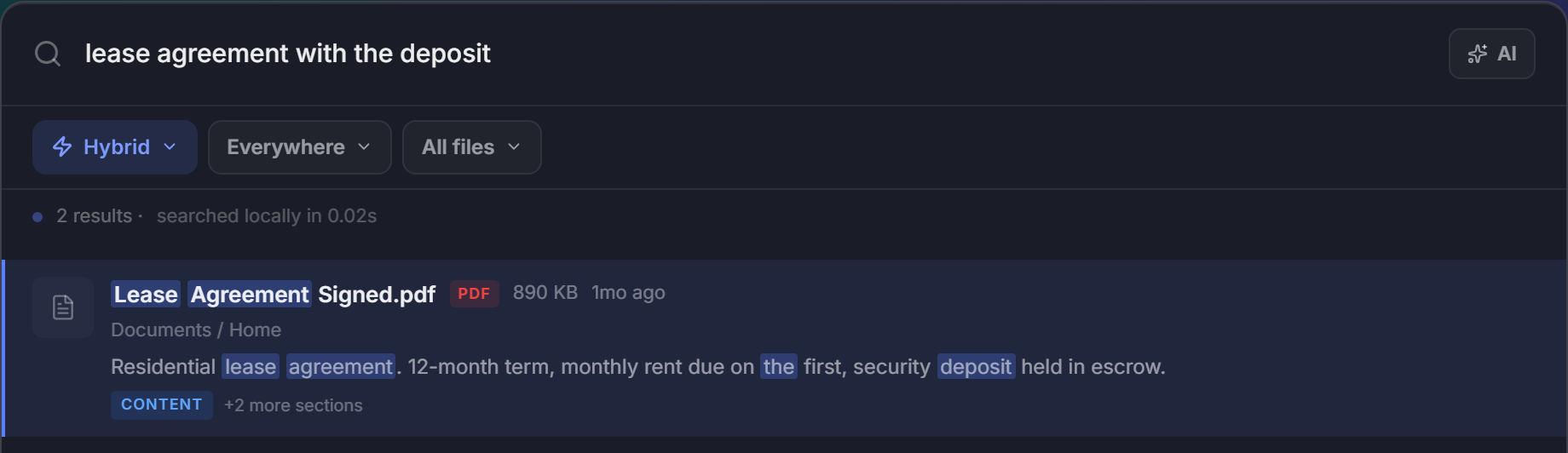
BeaconFind does this on any Windows 10 or 11 PC. You press Ctrl+K, type “the apartment contract with the deposit amount”, and it finds the file even if it is called scan0047.pdf and never uses the word “deposit”. It reads 70+ file types, understands 50+ languages so an English search can find a German document, and it reads text out of screenshots and scanned PDFs, which is the exact gap in the table above.
Your files, their contents and your searches stay on your PC. The app does contact our server for two things, a licence check and an update check, and both can be blocked by a firewall without affecting search.
Try meaning-based search on your own files. Free for 14 days, no account, no card.
Download BeaconFindWhich method should you use?
| Your situation | Use this |
|---|---|
| You know the exact words, file is in Documents | File Explorer with content: |
| Your files live across several drives or folders | Turn on Enhanced indexing first |
| The document is a scan or a screenshot | You need OCR, which Windows Search does not do |
| The document is in another language | Meaning-based search, or search in that language |
| You remember the topic, not the wording | Semantic search |
| You have forgotten the file name entirely | Find a file without its name |
Frequently asked questions
Can Windows search inside PDF files?
Yes. Windows 11 ships a PDF content filter, so File Explorer can find words inside a PDF as long as the PDF has a real text layer. A scanned page is a picture of text and has no text layer, so there is nothing for Windows to read, and those PDFs stay invisible to it.
Can Windows search inside Word documents and Excel files?
Yes. Word, Excel and PowerPoint files all have content filters built into Windows, so their text is searchable once the file sits in an indexed location.
How do I search for text inside files in File Explorer?
Open the folder, click the search box at the top right, and type content: followed by your phrase in quotes, for example content:"termination notice". Without the content: operator, File Explorer may match file names only.
Why can't Windows find text I know is in a file?
Three common reasons: the file is outside an indexed location, the file type has no content filter installed, or the words you typed are not the words in the document. Windows Search matches text literally, so it cannot connect a search for salary to a document that says compensation.
Can Windows search inside screenshots or scanned documents?
No. Windows Search reads text, and in a screenshot or a scan the text is part of an image. Reading that requires OCR, which the Windows indexer does not do.
Does Windows 11 have AI or semantic file search?
Only on Copilot+ PCs. Microsoft's documentation says Copilot+ PCs perform semantic indexing along with traditional indexing, so related terms can match, and that it is optimised for English, French, German, Spanish, Japanese and Simplified Chinese. A Copilot+ PC is defined by an NPU rated at 40 trillion operations per second or more, so a PC without one does not get it. Other PCs can still use a third-party tool that searches by meaning on the processor.
Does searching file contents slow down my PC?
Indexing costs some CPU and battery while it runs, mostly during the first pass, which can take hours on a full drive. Once the index is built, searching itself is fast and the ongoing cost is small.